
Outstanding Subject – Using opacity layers, create a video element that can be placed into video projects and utilized in a way that is simple and versatile.

1. Video
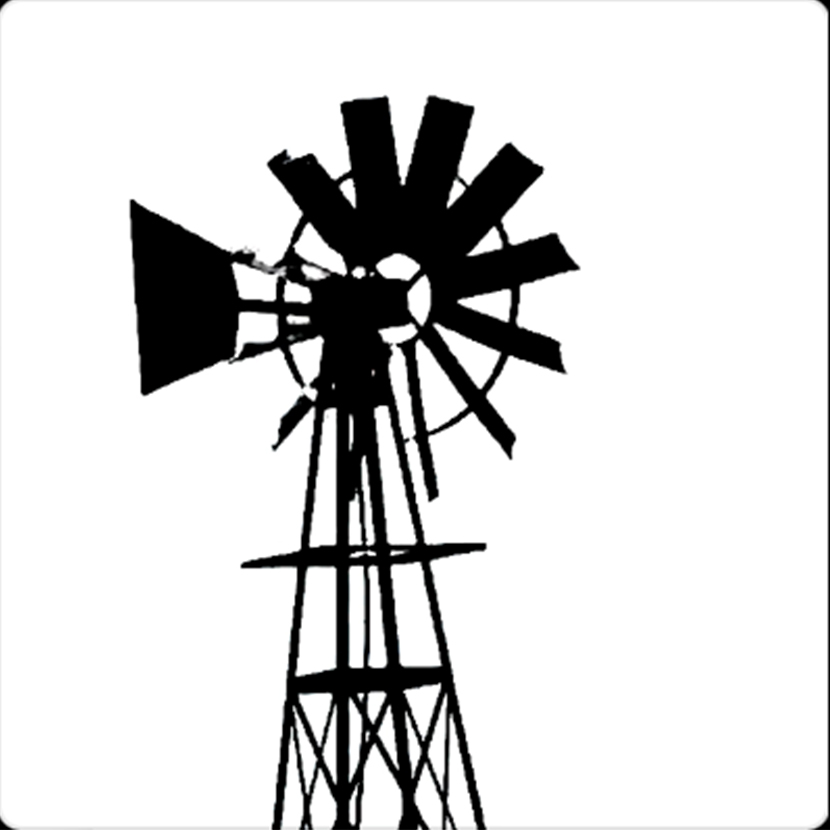
Take video, with a contrast between the subject and its background. Dark on light or light on dark will work, in this example it is a dark windmill in front of a light sky background.
2. Selection
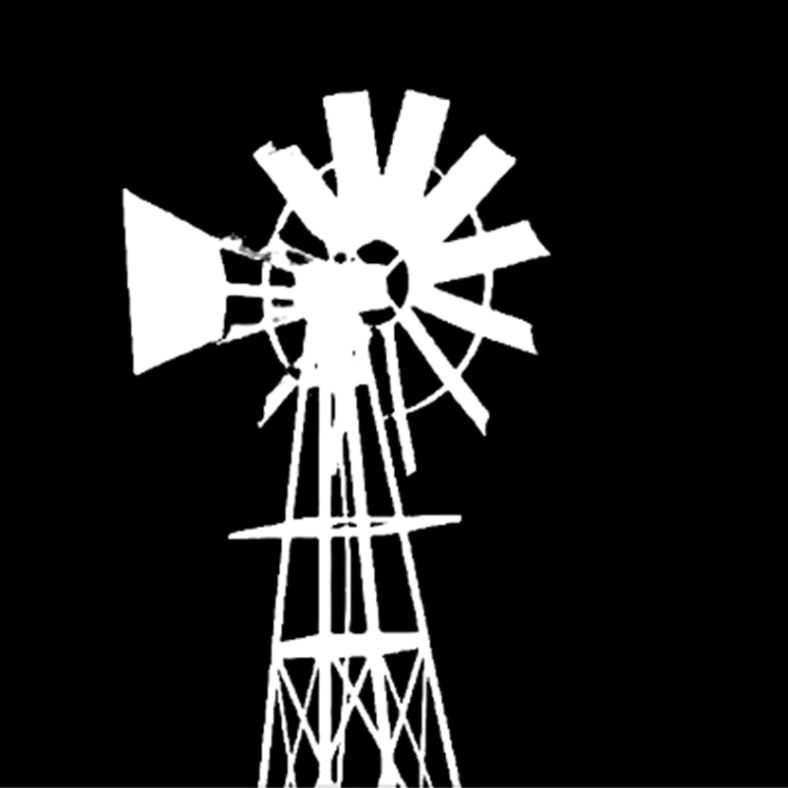
Select the black and white point in “Step 1 Video” that captures the foreground as one extreme and the background as the other. You will want to cover with blocks of color any inconsistencies in the subject or background, so that you only select the subject and not any distractions. To invert the black / white, you can put a white layer on top and set the opacity layer to “Difference,” which will be convenient later.

3. Masked
Mask the background with “Step 2 Selection” by making the subject black and background white, and putting an opacity layer of “Screen” or “Lighten.” This will give you a colorized subject on a white background.
4. Canvas
Create a canvas by taking “Step 2 Selection” and setting the subject as white and background as black, as described in the last sentence of that step. This canvas will be set to “Screen” or Lighten” so that the black background disappears and only the white canvas remains. Then, put an identical layer with “Step 3 Masked” over it and set to “Darken” or “Multiply” so that the white background disappears and only the colorized subject remains.
You now have an outstanding subject with the ability to overlay it onto a video project. Explore the ways to layer, colorize, and apply effects to multiple overlays.
• Below, find this guide as a downloadable PDF.
 westont17